How to Add a Signature in Gmail With a Logo and Social Icons

Benjamin Lehrer
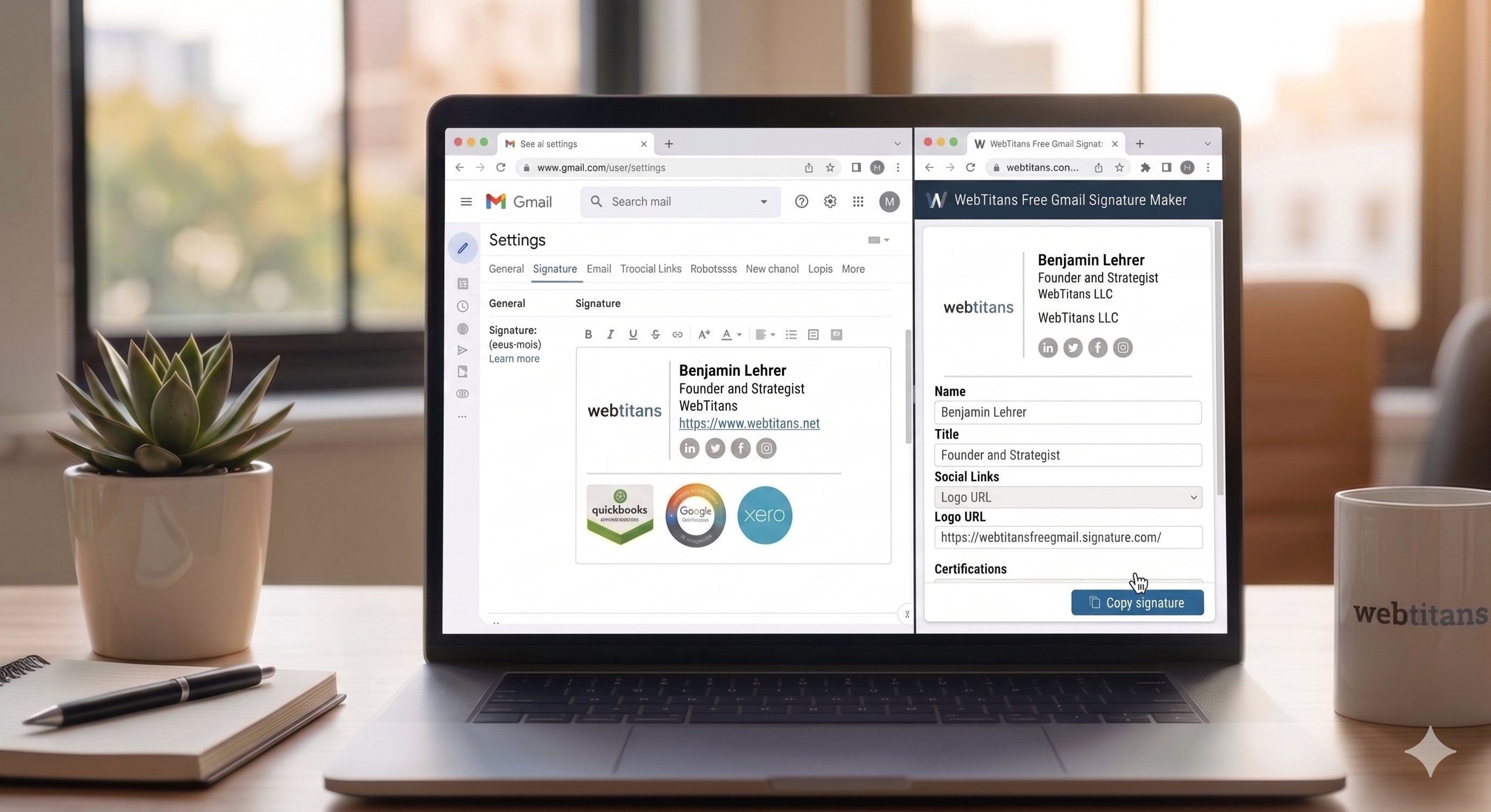


Stop Fighting the Gmail Signature Box
If you have ever tried to build a real Gmail signature, one with your logo, a few social icons, maybe a booking link, you already know Gmail does not make it easy. There is no proper signature designer built in. You get a small text box, an image button, and a lot of trial and error.
Most guides walk you through a fiddly workaround that involves building tables in Google Docs, hiding borders, and resizing icons by hand. It works, but it is slow, and it breaks the moment you want to change anything. There is a faster way, and this guide covers both routes so you can pick what fits.
At WebTitans, we build tools that remove this kind of busywork, including a free Gmail Signature Maker. Below we will walk through what a good signature includes, the manual method, the faster method, and how to fix the problems nobody warns you about.
What a Good Gmail Signature Includes
A signature is a tiny piece of real estate, so the goal is useful, not crowded. A strong one usually has:
• Your name and job title
• Company name
• Phone and email
• Website, and a booking link if you take meetings
• A logo or headshot
• Two or three social icons, not six
• A certification badge or two if they build trust in your field
A simple rule: if a recipient cannot act on it or be reassured by it, leave it out. Five clickable elements is plenty. More than that and people stop reading.
The Manual Method, and Why It Is a Pain
Here is the standard approach most people land on when they search for this.
1. Open Gmail and go to Settings (the gear icon), then See all settings, then General.
2. Scroll to the Signature section and create a new signature.
3. Type your name, title, and contact details into the box.
4. To add a logo, click the Insert image button and either upload it or paste an image URL.
5. To add social icons, download each icon as an image, host it online, insert it, then select it and add a link to your profile.
6. Click Save Changes at the very bottom of the page.
It works. But a few things make it genuinely annoying:
• Gmail will not accept images from your computer in a signature. The image has to live online at a direct URL, which trips most people up right away.
• Aligning a logo next to your text usually means building an invisible table, which is why so many guides tell you to do it in Google Docs first and paste it over.
• Every social icon is a separate insert-then-link step. Five icons means ten manual actions, and one wrong link is easy to miss.
• Change your phone number later and you are often rebuilding the whole thing.
If you only ever make one signature and never touch it again, fine. If you are doing this for yourself plus a few team members or clients, it gets old fast.
The Faster Way: Use a Free Signature Maker
This is the reason we built our Gmail Signature Maker. It is free, there is no account, and it handles the parts Gmail makes hard.
You fill in your details, pick a layout, add your social links and logo, and watch a live preview update as you go. When it looks right, you copy it and paste it straight into Gmail. The tool builds the clean HTML for you, so there is no table-wrangling and no broken alignment.
Here is the full flow:
1. Open the signature maker and fill in your name, title, company, and contact details.
2. Pick a layout (Modern, Classic, or Minimal) and set your accent color and font.
3. Add your social links. Drop in the URLs and the icons appear automatically, in color or black and white, your choice.
4. Add a logo URL and choose where it sits relative to your text.
5. Add certification badges if you have them.
6. Click Copy signature, go to Gmail Settings, then General, then Signature, paste it in, and Save Changes.
The whole thing takes a couple of minutes, and because you can save your signature in the tool, updating it later is trivial.
How to Add Certification Badges
This is something most signature tools skip entirely, and it is one of the most useful trust signals you can add. If you are a QuickBooks ProAdvisor, Xero Certified, a certified contractor, or you have earned any badge worth showing, your signature is a great place for it.
In the signature maker there are three badge slots. For each one you paste a direct image URL of the badge, and you can optionally add a link, usually to a verification page so people can confirm it is legit. You can also control the badge height so they line up cleanly with the rest of your signature.
The same hosting rule applies here as with logos: the badge has to be an image that lives online, not a file on your computer.
Getting a Web Link for Your Logo or Badge
This is the single biggest thing that trips people up, so it is worth spelling out. Gmail signatures cannot use images stored on your computer. The image has to be online at a direct URL, the kind that ends in .png, .jpg, or .gif.
If your logo is not already hosted somewhere, here is a free way to get a link:
1. Go to imgur.com and click New post.
,2. Drag in your logo or badge image and wait for it to upload.
3. Right-click the uploaded image and choose Copy Image Address.
4. The link should end in .png, .jpg, or .gif, for example i.imgur.com/abc123.png.
5. Paste that link into the logo or badge field.
Quick test: paste the link into a fresh browser tab. If you see only the image on a blank page, it is the right kind of link. If you see a normal web page with buttons and menus, it will not work in your signature, so go back and copy the direct image address instead.
Common Gmail Signature Problems, and Fixes
A few issues come up again and again. Here is how to handle them.
My logo is not showing up. Almost always a hosting problem. The image link points to a web page instead of the image file itself. Run the quick test above. The link needs to end in an image extension.
My signature will not save. Make sure you have selected the signature radio button, not "No signature," and that you scrolled all the way down to click Save Changes. Gmail puts that button at the very bottom of the settings page, which is easy to miss.
The spacing looks off after pasting. This usually happens when a signature was built with manual tables that do not survive the paste. Generating clean HTML with a tool avoids it. If you are editing by hand, keep the structure simple.
It looks fine for me but broken for recipients. Oversized images are the usual culprit. Keep your logo modest and your image files small. Heavy images can also get your emails flagged as spam, so optimize before you upload.
It looks wrong on mobile. Stick to web-safe fonts like Arial, Georgia, and Verdana, and do not pack in too many elements. A leaner signature holds up better across devices.
Your Signature Is Part of Your Brand
It is easy to think of an email signature as an afterthought, but you send dozens of emails a day, and every one ends with it. It is quietly one of the most-seen pieces of your brand. A clean signature with your logo, a couple of relevant links, and a badge or two does real work building credibility, without you lifting a finger after setup.
Get Started With Your Project Today
If you want to skip the manual grind, our free Gmail Signature Maker gives you copy-ready HTML in a couple of minutes, with no account needed. Build one for yourself, your team, or your clients, and never fight the Gmail signature box again. And if you want a website and brand system that works as hard as your signature does, the team at WebTitans is here to help. Reach out today so we can map out the right next steps for your business.


.jpg)
